Probe Selector
The ImGuiProbeSelector draws a probe described by a ProbeInterface file. It shows the probe's outline and contacts in two views: a minimap of the whole probe with a selectable region, and a zoomed view of that region in which contacts can be selected and distances measured.
The selector draws the probe and handles input gestures, while its owner decides what the contacts mean. In a configuration dialog, for example, the fill colors might show which contacts are enabled, and the selection could dictate what the dialog's buttons and keys act on.
Note
The figures in this article are taken from the NeuropixelsV2e configuration dialog in OpenEphys.Onix1. The fill colors and the legend are that dialog's, and show which contacts are enabled.
Views
The minimap shows the whole probe, with a depth scale beside it. A yellow box marks the part of the probe the zoomed view shows. Dragging in the minimap moves the zoomed view to the pointer.
The zoomed view shows part of the probe at one scale on both axes, so the contacts keep their true shape. Its grid and axis labels are in the probe file's units, usually micrometers. While the pointer is over the probe, its position is shown in the lower right. An owner can also show a legend for the colors it uses, which is drawn above the view.
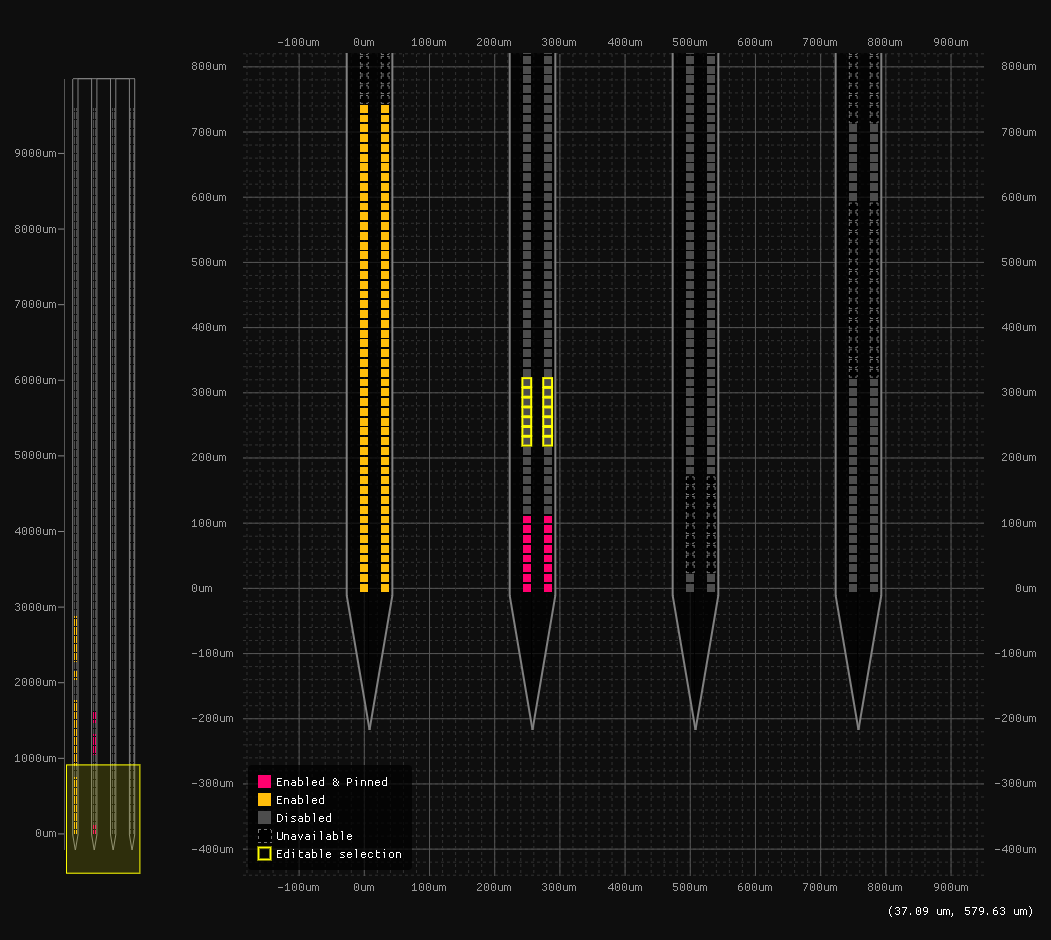
Selected contacts are outlined in yellow. A contact that its owner blocks from selection, such as one that cannot be enabled, is filled black with a dotted outline, and a selection gesture that sweeps it outlines it in grey without selecting it.
Keys and mouse
The minimap and the zoomed view both answer the wheel. The other gestures and the keys act in the zoomed view. R and Delete work only while the pointer is over it. Escape cancels a gesture in progress wherever the pointer is, since a drag can carry it out of the view, but deselects a ruler or clears the selection only while the pointer is over the view.
Mouse
| Gesture | Action |
|---|---|
| Wheel | Moves the view along the probe. |
| Shift+Wheel | Moves the view across the probe. |
| Ctrl+Wheel | Zooms in or out, between 50 units across (50 µm for most probes) and the whole probe. |
| Middle-drag | Grabs the probe and moves it with the pointer. |
| Right-drag | Zooms to the box dragged, centering the view on it. Since both axes share one scale, the zoom is set by whichever side of the box needs more room. A box no larger than a few pixels does nothing, and Escape cancels one being dragged. |
| Right double-click | Zooms all the way out, to the whole probe. |
| Click | Selects the contact clicked, alone. A click away from the contacts clears the selection. |
| Drag | Selects every contact the box touches, in place of the selection. |
| Shift+Click, Shift+Drag | Adds the contacts to the selection. |
| Ctrl+Shift+Click, Ctrl+Shift+Drag | Removes the contacts from the selection. The box is drawn in red. |
| Click on a ruler | Selects the ruler. The pointer turns into a hand over a ruler. |
When its owner turns selection off, a click or a left drag only selects a ruler.
Keys
| Key | Action |
|---|---|
| R | Arms a ruler, or cancels one being placed (see Rulers). |
| Delete | Removes the selected ruler. |
| Shift+Delete | Removes every ruler. |
| Escape | Cancels the most recent thing first: a zoom box or selection box being dragged or a ruler being placed, then, over the view, the selected ruler, then the contact selection. |
Rulers
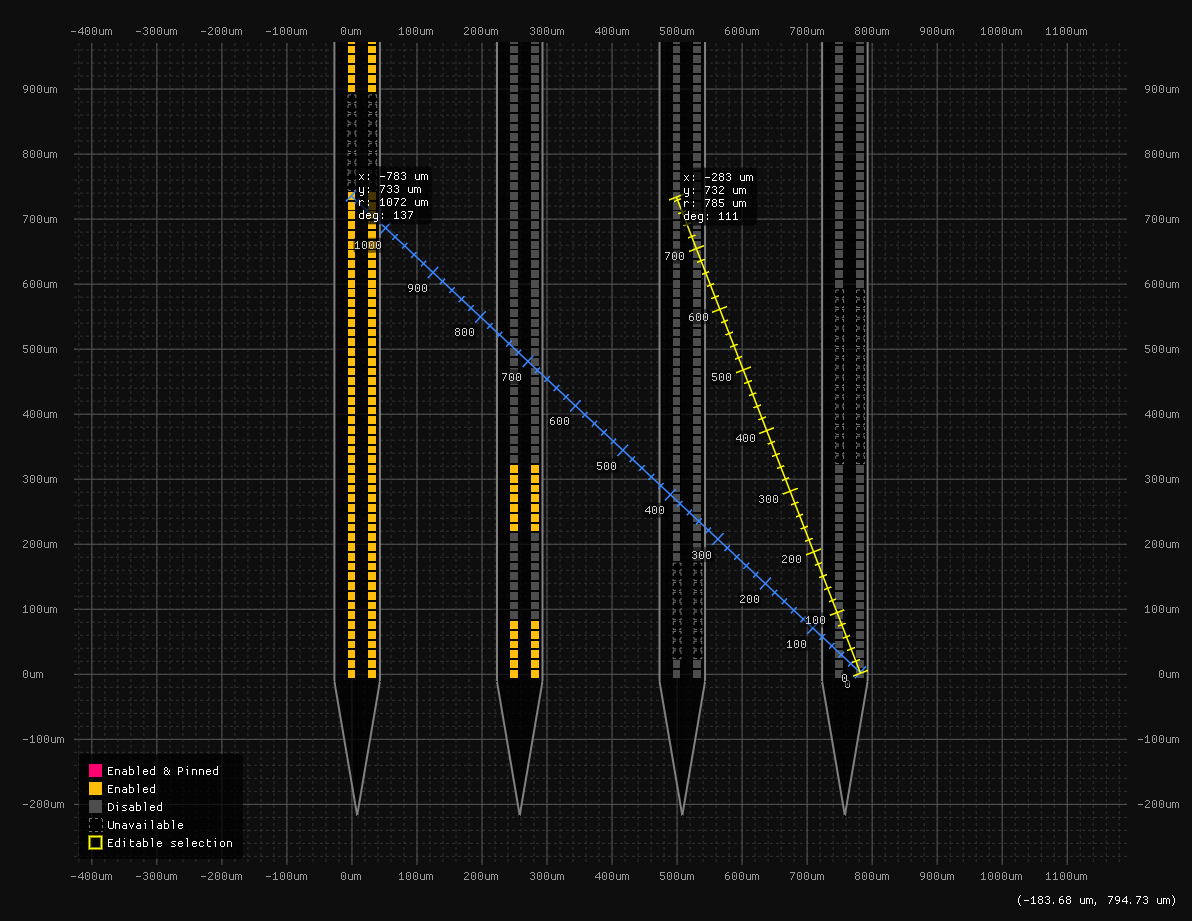
A ruler measures between two points on the probe. Ticks mark every 100 units along it, with a minor tick every 20, and a label at its end gives the distance across (x), along the probe (y), in a straight line (r), and the angle in degrees.
To place a ruler, press R with the pointer over the zoomed view, or press Add in the owner's Rulers controls. While a ruler is armed, the pointer becomes a crosshair that spans the view. Drag from one end to the other, or click one end and then the other. Pressing R or Add again before the ruler is placed cancels it, as does Escape or switching to another tab.
A ruler just placed is selected, and is drawn in yellow, so Delete removes it at once if it was placed by mistake. Click a ruler to select it, and click anywhere else in the view to deselect it. Clear, beside Add, removes every ruler, as Shift+Delete does.
Rulers are kept in the probe's coordinates, so they stay on the same points when the view is moved or zoomed, and a ruler can be zoomed in on while it is being placed.
Hosting the selector
A package that shows a probe creates an ImGuiProbeSelector and calls it each frame:
- Refresh loads a probe, clearing the selection.
- DrawMinimap and DrawZoomedView each fill the child window they are called in. MinimapWidth gives the width a minimap needs. A view that only shows the probe draws the zoomed view alone, with selection off.
- ToggleRuler and RemoveRulers do what R and Shift+Delete do, and PlacingRuler and RulerCount give the state the owner's own controls for them show.
- FillColor, Blocked and Legend say what the contacts mean.
- Contacts gives each contact's place in the selection, and SelectionChanged is raised when a gesture has changed it.
- Reveal scrolls a contact into the middle of the zoomed view, so the probe can follow a selection made elsewhere, such as a channel in a plot.
- Hotkeys lists the keys the view answers, for a host that routes keys by pointer, and Hovered says whether the pointer is over the view, for an owner whose own keys should work only there.