Optimizing Closed Loop Performance
Every data acquisition system involves a fundamental tradeoff between latency and throughput. Processing data in small chunks reduces buffering delays but increases processing overhead, limiting overall bandwidth. Conversely, processing data in large chunks reduces overhead and increases throughput, but requires waiting for buffers to fill, which raises latency. This tutorial explains how to tune your hardware to best balance this tradeoff for your specific hardware configuration, processing pipeline, and host computer capabilities for experiments with strict low-latency closed-loop requirements. In most situations, sub-200 microsecond closed-loop response times can be achieved.
Note
Performance will vary based on your computer's capabilities and your results might differ from those presented below. The computer used to create this tutorial has the following specs:
- CPU: Intel i9-12900K
- RAM: 64 GB
- GPU: NVIDIA GTX 1070 8GB
- OS: Windows 11
Optional technical background: the hardware buffer and ReadSize
Each time the host software reads data from the hardware, it obtains ReadSize
bytes of data using the following procedure:
- A block of memory that is
ReadSizebytes long is allocated by the API. - A pointer to that memory is provided to the kernel driver, which locks it into kernel mode wherein ONIX can directly access that that block of memory. The kernel drive initiates a DMA transfer.
- The transfer is performed by ONIX hardware without additional CPU
intervention and completes once
ReadSizebytes have been transferred. - Upon transfer completion, the buffer is passed from kernel mode back to user mode which relinquishes control of the memory block to software. The API function returns with a pointer to the filled buffer.
There are a couple of things to note about this process:
- Memory is allocated only once by the API, and the transfer is
zero-copy. ONIX hardware writes
directly into the API-allocated buffer autonomously without using the host
computer's resources. Within this process,
ReadSizedetermines the amount of data that is transferred each time the API reads data from the hardware. - If the buffer is allocated and the transfer initiated by the host API before
data is produced by the hardware, the data is transferred directly into the
buffer. In this case, hardware is literally streaming data to the software
buffer the moment it is produced. With the constraint that the entire
buffer must be filled with
ReadSizebytes before software can access it, it is physically impossible to achieve lower latencies than this. The goal of this tutorial is to allow your system to operate in this regime. - If ONIX produces data faster than it is transferred to and consumed by the
host, this stream of new data is redirected to the ONIX
Hardware Buffer. The ONIX hardware buffer consists of 2GB of dedicated RAM that belongs to the acquisition hardware (it is not RAM in the host computer). The hardware buffer temporarily stores data that has not yet been transferred to the host.
The size of hardware to host data transfers is determined by the
ReadSize property of the
StartAcquisition operator, which is included in every
workflow that uses OpenEphys.Onix1 to acquire data from ONIX. Choosing an
optimal ReadSize value balances the tradeoff between latency and overall
bandwidth. Smaller ReadSize values mean that less data needs to accumulate
before the kernel driver relinquishes control of the buffer to software. This,
in effect, means less time needs to pass before software can start operating on
data, and thus lower-latency feedback loops can be achieved. However, because
each transfer requires calls to the kernel driver, they incur significant
overhead. If ReadSize is so small that the average time it takes to perform a
data transfer is longer than the time it takes the hardware to produce a
ReadSize amount of data, data will accumulate in the Hardware Buffer. This
will destroy real-time performance and risks overflowing the hardware buffer,
terminating acquisition. Larger ReadSize values mean that more data needs to
accumulate before the kernel driver relinquishes control of the buffer to
software. This means more time needs to pass before software can start operating
on data. This increases average latency but reduces the risk of accumulating
data in the ONIX hardware because transferring the same amount of data at a
larger ReadSize incurs less overhead in the form of calls to the kernel
driver.
Tuning ReadSize to Optimize Closed Loop Performance
ONIX provides a mechanism for tuning the value of ReadSize to optimize closed
loop performance that takes into account the idiosyncrasies of your host
computer and experimental acquisition setup.
Note
If you are not familiar with the basic usage of the OpenEphys.Onix1 library,
then visit the Getting Started guide to set up your
Bonsai environment and familiarize yourself with using the library to acquire
data from ONIX before proceeding.
Copy the following workflow into the Bonsai workflow editor by hovering over the workflow image and clicking on the clipboard icon that appears. Open Bonsai and paste this workflow by clicking the Bonsai workflow editor pane and pressing Ctrl+V.
Hardware Configuration
The top-row configuration chain includes a ConfigureLoadTester operator. This configures ONIX's Load Tester Device, which produces and consumes data at user-specified rates for testing and tuning the latency between data production and real-time feedback. This device is not an emulator. It is a real hardware device that produces and consumes data using the selected driver and physical link (e.g. PCIe bus) and thus provides accurate measurements of feedback performance for a given host computer.
We need to configure the load tester to produce and consume the same amount of data as our real experimental hardware would. For example, lets say that during our closed loop experiment, feedback signals will be generated as a function of data acquired from two Neuropixels 2.0 probes, each of which generates a 384 channel sample at 30 kHz. The overall bandwidth is
To understand how we came up with this calculation, visit the Data Elements page.
We'll setup ConfigureLoadTester to produce data at the same frequency and
bandwidth as two Neuropixels 2.0 probes with the following settings:
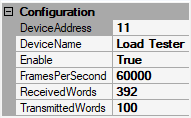
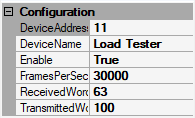
DeviceAddressis set to 11 because that's how this device is indexed in the ONIX system.DeviceNameis set to "Load Tester"Enableis set to True to enable the LoadTester device.FramesPerSecondis then set to 60,000 Hz. The rate at which frames are produced by two probes, since each is acquired independently.ReceivedWordsis set to 392 bytes, the size of a single NeuropixelsV2DataFrame including its clock members.TransmittedWordsis set to 100 bytes. This simulates the amount of data required to e.g. send a stimulus waveform.
Note
The DeviceAddress must be manually configured because
ConfigureLoadTester is used for diagnostics and testing
and therefore is not made available through
ConfigureBreakoutBoard like the rest of the local
devices (analog IO, digital IO, etc.). The device address can be found using
oni-repl.
Next we configure StartAcquisition's ReadSize and WriteSize properties.
WriteSize is set to 16384 bytes. This defines a readily-available pool of
memory for the creation of output data frames. Data is written to hardware as
soon as an output frame has been created, so the effect on real-time performance
is typically not as large as that of the ReadSize property.
To start, ReadSize is also set to 16384. Later in this tutorial, we'll examine
the effect of this value on real-time performance.
Real-time Loop
The bottom half of the workflow is used to stream data back to the load testing device from hardware so that it can perform a measurement of round trip latency. The LoadTesterData operator acquires a sequence of LoadTesterDataFrames from the hardware each of which is split into its HubClock member and HubClockDelta member.
The HubClock member indicates the acquisition clock count when the
LoadTesterDataFrame was produced. The EveryNth operator is a
Condition operator which only allows through every Nth
element in the observable sequence. This is used to simulate an algorithm, such
as spike detection, that only triggers closed loop feedback in response to input
data meeting some condition. The value of N can be changed to simulate
different feedback frequencies. You can inspect its logic by double-clicking the
node when the workflow is not running. In this case, N is set to 100, so every
100th sample is delivered to LoadTesterLoopback.
LoadTesterLoopback is a sink which writes HubClock values it receives back
to the load tester device. When the load tester device receives a HubClock from
the host computer, it's subtracted from the current acquisition clock count.
That difference is sent back to the host computer as the HubClockDelta
property of subsequent LoadTesterDataFrames. In other words, HubClockDelta
indicates the amount of time that has passed since the creation of a frame in
hardware and the receipt of a feedback signal in hardware based on that frame:
it is a complete measurement of closed loop latency. This value is converted to
milliseconds and then Histogram1D is used to help visualize
the distribution of closed-loop latencies.
Finally, at the bottom of the workflow, a MemoryMonitorData operator is used to examine the state of the hardware buffer. To learn about the MemoryMonitorData branch, visit the Breakout Board Memory Monitor page.
Relevant Visualizers
The desired output of this workflow are the visualizers for the Histogram1D and PercentUsed nodes. Below is an example of each which we will explore more in the next section:
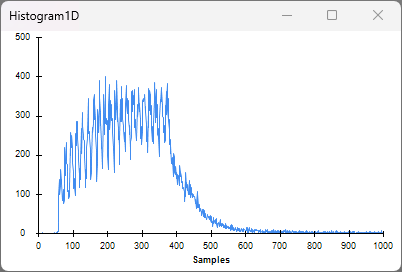
The Histogram1D visualizer shows the distribution of closed-loop feedback latencies. The x-axis is in units of μs, and the y-axis represents the number of samples in a particular bin. The histogram is configured to have 1000 bins between 0 and 1000 μs. For low-latency closed-loop experiments, the goal is to concentrate the distribution of closed-loop feedback latencies towards 0 μs as much as possible.
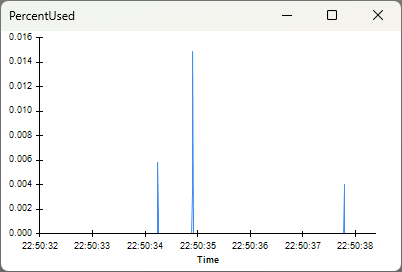
The PercentUsed visualizer shows a time-series of the amount of the hardware buffer that is occupied by data as a percentage of the hardware buffer's total capacity. The x-axis is timestamps, and the y-axis is percentage. To ensure data is available as soon as possible from when it was produced and avoid potential buffer overflow, the goal is to maintain the percentage at or near zero.
Real-time Latency for Different ReadSize Values
ReadSize = 16384 bytes
With ReadSize set to 16384 bytes, start the workflow and open the visualizers for the PercentUsed and
Histogram1D nodes:
The Histogram1D visualizer shows that the average latency is about 300 μs, with
most latencies ranging from ~60 μs to ~400 μs. This roughly matches our
expectations. Since data is produced at about 47MB/s, it takes about 340 μs to
produce 16384 bytes of data. This means that the data contained in a single
ReadSize block was generated in the span of approximately 340 μs. Because we
are using every 100th sample to generate feedback, the sample that is actually
used to trigger LoadTesterLoopback could be any from that 340 μs span resulting
in a range of latencies. The long tail in the distribution corresponds to
instances when the hardware buffer was used or the CPU was busy with other
tasks.
The PercentUsed visualizer shows that the percent of the hardware buffer being used remains close to zero. This indicates minimal usage of the hardware buffer, and that the host is safely reading data faster than the ONIX produces that data. For experiments without hard real-time constraints, this latency is perfectly acceptable.
For experiments with harder real-time constraints, let's see how much lower we can get the closed-loop latency.
ReadSize = 2048 bytes
Set ReadSize to 2048 bytes, restart the workflow (ReadSize is a
property so it only updates when a workflow starts), and open the same visualizers:
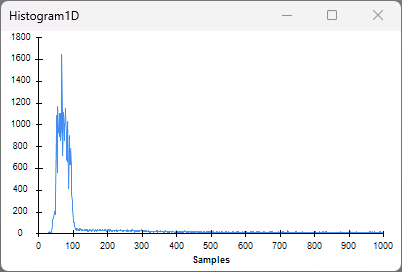
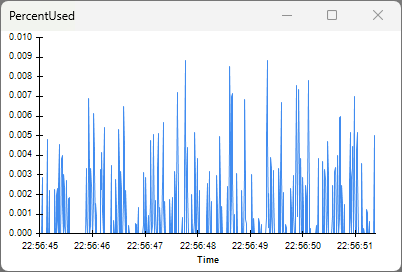
The Histogram1D visualizer shows closed-loop latencies now average about 80 μs with lower variability.
The PercentUsed visualizer shows the hardware buffer is still stable at
around zero. This means that, even with the increased overhead associated
with a smaller ReadSize, the host is reading data rapidly enough to prevent
excessive accumulation in the hardware buffer. Let's see if we can decrease
latency even further.
ReadSize = 1024 bytes
Set ReadSize to 1024 bytes, restart the workflow, and open the same visualizers.
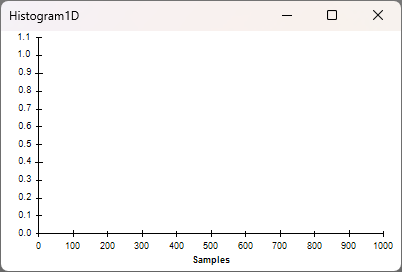
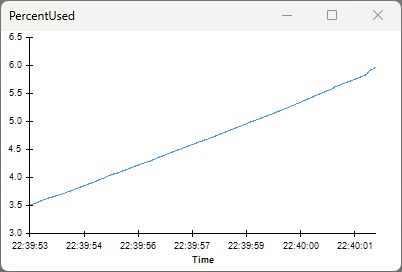
The Histogram1D visualizer appears to be empty. This is because the latency immediately exceeds the x-axis upper limit of 1 ms. You can see this by inspecting the visualizer for the node prior to Histogram1D. Because of the very small buffer size (which is on the order of a single Neuropixels 2.0 sample), the computer cannot perform read operations at a rate required to keep up with data production. This causes excessive accumulation of data in the hardware buffer. In this case, when new data is produced, it gets added to the end of the hardware buffer queue, requiring several read operations before this new data can be read. As more data accumulates in the buffer, the duration of time from when that data was produced and when that data can finally be read increases. In other words, latencies increase dramatically, and closed loop performance collapses.
The PercentUsed visualizer shows that the percentage of the hardware buffer that is occupied is steadily increasing. The acquisition session will eventually terminate in an error when the MemoryMonitor PercentUsed reaches 100% and the hardware buffer overflows.
Summary
The results of our experimentation are as follows:
ReadSize |
Latency | Buffer Usage | Notes |
|---|---|---|---|
| 16384 bytes | ~300 μs | Stable at 0% | Perfectly adequate if there are no strict low latency requirements, lowest risk of buffer overflow |
| 2048 bytes | ~80 μs | Stable near 0% | Balances latency requirements with low risk of buffer overflow |
| 1024 bytes | Rises steadily | Unstable | Certain buffer overflow and terrible closed loop performance |
These results may differ for your experimental system. For example, your system might have different bandwidth requirements (if you are using different devices, data is produced at a different rate) or use a computer with different performance capabilities (which changes how quickly read operations can occur). For example, here is a similar table made by configuring the Load Tester device to produce data at a rate similar to a single 64-channel Intan chip (such as what is on the Headstage 64), ~4.3 MB/s:
ReadSize |
Latency | Buffer Usage | Notes |
|---|---|---|---|
| 1024 bytes | ~200 μs | Stable at 0% | Perfectly adequate if that are no strict low latency requirements |
| 512 bytes | ~110 μs | Stable at 0% | Lower latency, no risk of buffer overflow |
| 256 bytes | ~80 μs | Stable at 0% | Lowest achievable latency with this setup, still no risk of buffer overflow |
| 128 bytes | - | - | Results in error -- 128 bytes is too small for the current hardware configuration |
Regarding the last row of the above table, the lowest ReadSize possible is
determined by the size of the largest data frame produced by enabled devices
(plus some overhead). Even with the lowest possible ReadSize value, 256 bytes,
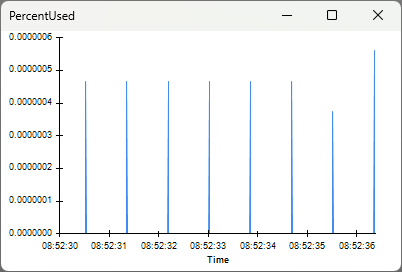
there is very little risk of overflowing the buffer. The PercentUsed visualizer
shows that the hardware buffer does not accumulate data:
Tip
- The only constraint on
ReadSizeis the lower limit as demonstrated in the example of tuning forReadSizefor a single 64-channel Intan chip. We only testedReadSizevalues that are a power of 2, butReadSizecan be fine-tuned further to achieve even tighter latencies if necessary. - As long as you stay above the minimum mentioned in the previous bullet
point,
ReadSizecan be set to any value by the user. The OpenEphys.Onix1 Bonsai package will round thisReadSizeup to the nearest multiple of four and uses that value instead. For example, if you try to setReadSizeto 885, the software will use the value 888 instead. - If you are using a data I/O operator that has capacity to produce data at
various rates (like DigitalInput), test your chosen
ReadSizeby configuring the load tester to produce data at the lower and upper limits that you expect data to be produced during your experiment. This will help ensure excess data doesn't accumulate in the hardware buffer and desired closed-loop latencies are maintained throughout the range of data throughput of these devices. - Running other processes that demand the CPU's attention might cause spurious spikes in data accumulation in the hardware buffer. Either reduce the amount other processes or test that they don't interfere with your experiment.
These two tables together demonstrate why it is impossible to recommend a
single correct value for ReadSize that is adequate for all experiments. The
diversity of experiments (in particular, the wide range at which they produce
data) requires a range of ReadSize values.
Last, in this tutorial, there was minimal computational load imposed by the workflow used in this tutorial. In most applications, some processing is performed on the data to generate the feedback signal. It's important to take this into account when tuning your system and potentially modifying the workflow to perform computations on incoming data in order to account for the effect of computational demand on closed loop performance.
Measuring Latency in Actual Experiment
After tuning ReadSize, it is important to experimentally verify the latencies
using the actual devices in your experiment. For example, if your feedback
involves toggling ONIX's digital output (which in turn toggles a stimulation
device like a Stimjim or a RHS2116
external trigger),
you can loop that digital output signal back into one of ONIX's digital inputs
to measure when the feedback physically occurs. This can be used to measure your
feedback latency by taking the difference between the clock count when the
trigger condition occurs and the clock count when the feedback signal is
received by ONIX.
You might wonder why you'd even use the LoadTester device if you can measure
latency using the actual devices that you intend to use in your experiment. The
benefit of the LoadTester device is that you're able to collect at least tens of
thousands of latency samples to plot in a histogram in a short amount of time.
Trying to use digital I/O to take as many latency measurements in a similar
amount of time can render your latency measurements inaccurate for the actual
experiment you intend to perform. In particular, toggling digital inputs faster
necessarily increases the total data throughput of
DigitalInput. If the data throughput of
DigitalInput significantly exceeds what is required for your experiment,
the latency measurements will not reflect the latencies you will experience
during the actual experiment.