
Getting Started#
Follow the Quick Start Guide below to get started with the Miniscope System right away. It connects a Miniscope v4 to a Miniscope DAQ and validates its functionality using a minimal Bonsai workflow, so that each part of the system can be checked on its own. To learn more about the software’s functionality and other software options to acquire from the Miniscope v4, read the Software Guide. For information on using miniscopes for experiments, please refer to these Additional Resources, our Troubleshooting Guide, and the FAQ.
Tip
This guide validates the hardware. To run experiments, the Software Guide covers two applications for visualizing and recording data. Follow Connecting the Hardware below, then install one of them as described there.
Quick Start Guide#
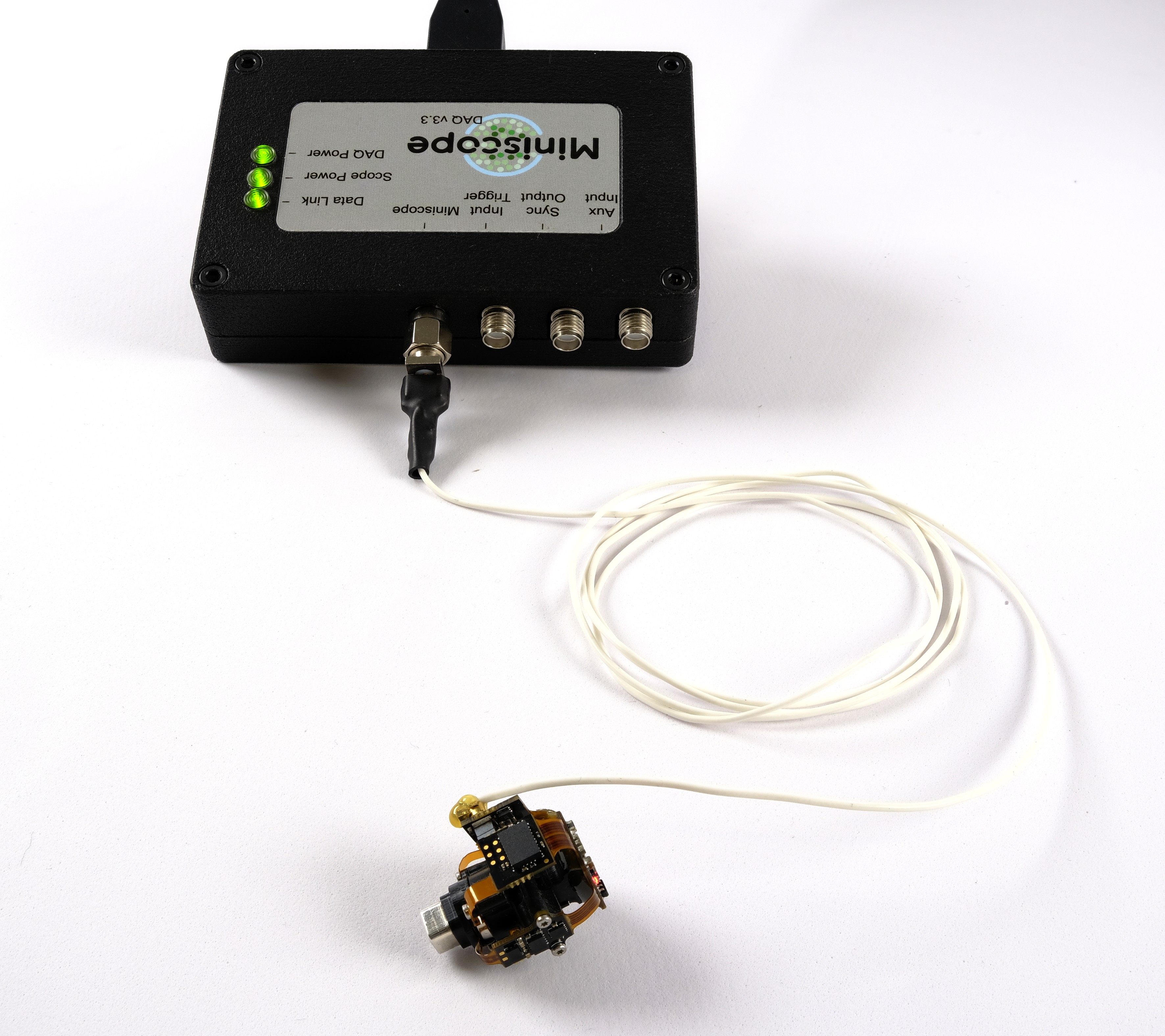
Starting with the basics: a system made up of the Miniscope DAQ v3.3 and a Miniscope v4.#
Connecting the Hardware#
Required components: Miniscope v4, Miniscope DAQ, coaxial tether (SMA ↔ U.FL), USB3.0 cable (Micro Type B ↔ Type A)
Connect the Miniscope DAQ to the miniscope using the coaxial tether:

Insert the tether’s SMA plug into Miniscope DAQ’s SMA jack labeled Miniscope. Gently hand-tighten the SMA connector until the connector no longer turns:
Click the tether’s U.FL connector into the miniscope’s U.FL socket. Take extra care to stabilize the PCB where the connector is attached during connection and disconnection of the tether. Make sure you feel both parts click together to ensure the connector is correctly seated.
Important
Hold the connector PCB firmly from the sides to fix in place so it does not bounce. Otherwise, components can get damaged by scraping PCBs against each other or the body.
Avoid inadvertently bending the flex-cables that join the PCBs. Otherwise, the electrical connections inside the flex-cables may break.
Align the connector to the socket and press it in without excessive force. If it does not go in easily, realign and try again. Otherwise, the connector can get damaged.


Connect the Miniscope DAQ to a USB 3.0-compatible port on your computer using the high-speed USB cable provided. USB 3.0-compatible ports are usually indicated by a blue color and/or the SuperSpeed mark and are often at the back of PCs.
Important
Ensure you establish a reliable USB connection by using a high-speed USB cable and connecting directly to the port instead of through a hub or extension. USB cables longer than 2 meters are not recommended.
Insert the cable’s USB3.0 Type A plug into your computer’s USB3.0 Type A jack:

Insert the cable’s USB3.0 Micro Type B plug into the Miniscope-DAQ’s USB3.0 Micro Type B jack located on the Miniscope-DAQ’s back face:

Once all connections have been properly established, you should see all three indicator LEDs on the Miniscope DAQ turn on as in the image above.
Go to
Start Menu > Settings > Devices > Bluetooth & other devicesand check that the board is listed as Connected to USB3.0, with no additional warnings: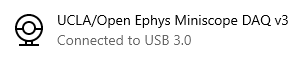
Acquiring Data#
Download and install the Open Ephys Miniscope V4 GUI
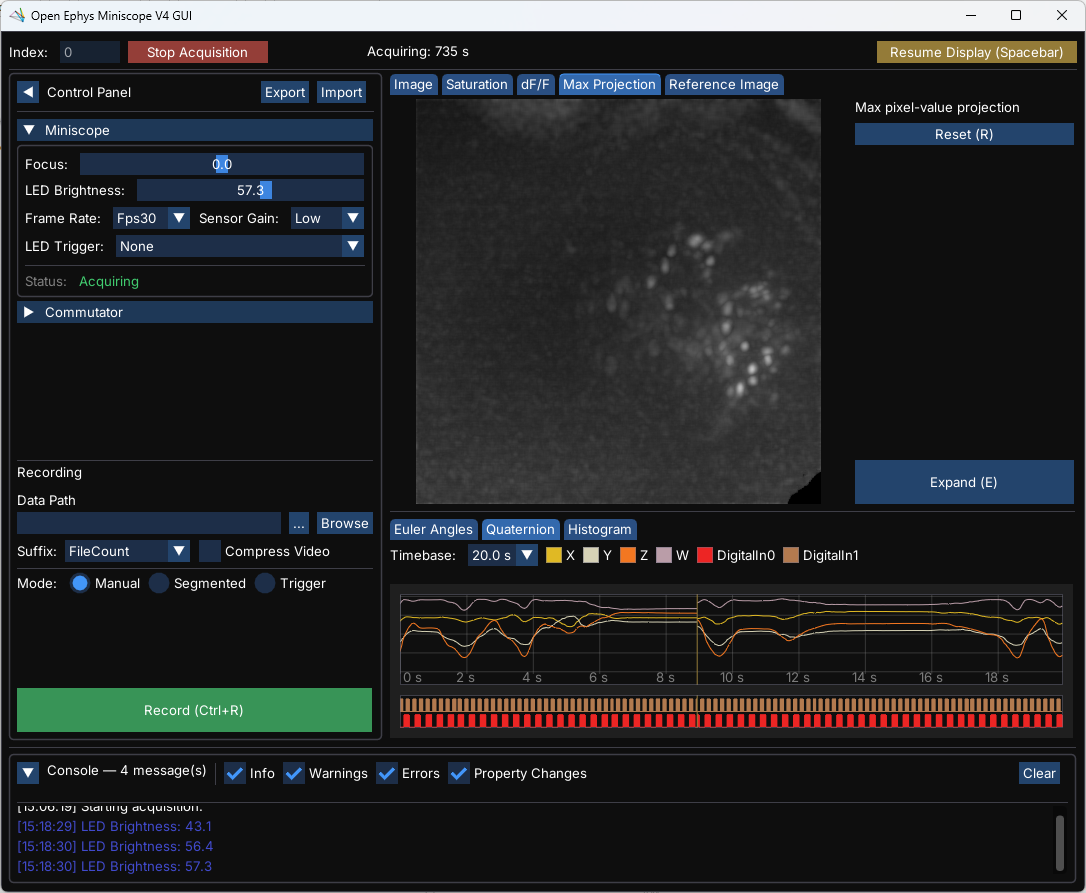
Follow the GUI’s user guide to explore the GUI’s functionality.
Once you’ve played with the GUI, explore how to acquire data in Bonsai and how the GUI can be used from within Bonsai workflows. This allows you to create integrate the GUI into customized acquisition pipelines without any loss of convenience.
Powering off the system#
The Miniscope DAQ does not have an on/off button. When you are done with acquisition, close the software and unplug the board from USB and/or power.