
Using the GUI in Bonsai#
Embed the GUI as a Single Node#
The GUI is itself a Bonsai workflow (MiniscopeV4Gui.bonsai), and it ships
inside the OpenEphys.Miniscope.Gui package as an embedded workflow. Drop it
straight into a workflow of your own and you get the entire GUI as a single
node, with exactly the same functionality as launching it as a standalone
application; see Starting Acquisition for why.
Start Bonsai and open the workflow you want to add the GUI to.
Install the
OpenEphys.Miniscope.Guipackage, if it is not already installed (see Installation)Find
MiniscopeV4Guiunder the package’s embedded workflows in the toolbox, and place it on the canvas.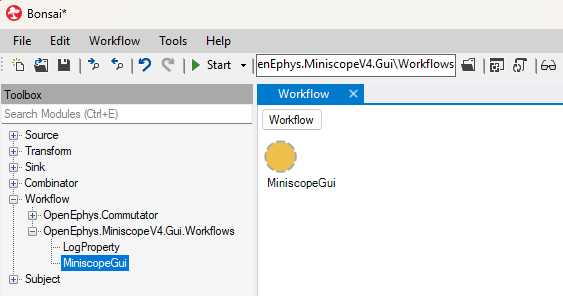
Run the workflow. With nothing but this node, you get exactly the functionality described in Installing and Using the GUI.
The node’s output is the Miniscope data frame, so you can connect it to any custom logic you like. Because it is just another node, the GUI can run alongside the rest of your workflow: a behavior camera acquired in the same workflow displays at the same time in a different window.

Swapping the Hardware Node for the GUI#
The GUI’s output is the same per-frame Miniscope data stream the raw UclaMiniscopeV4 node
produces, so the GUI workflow is a drop-in replacement for that node: whatever you build
downstream keeps working whether it is fed by the bare hardware node or by the GUI.
If you have already developed a processing pipeline around UclaMiniscopeV4, put the GUI
workflow in the same position to gain its visualizations. Nothing downstream has to change.
Here is the Trigger recordings with a hardware digital signal workflow with the UclaMiniscopeV4 node replaced
by the MiniscopeV4Gui workflow:

Alongside Other Processing#
Because the GUI is just another node, it can run in the same workflow as an entirely separate piece of processing: for example, a behavior-tracking tool like SLEAP watching a second camera, each with its own display.
Running two independent capture/encode pipelines side by side has the potential for USB bandwidth and CPU contention to show up. This is the same effect you’d see running a video call over a webcam while also acquiring from the Miniscope. To minimize any disruption, put any hardware on separate USB controllers where possible, and avoid running other encode/decode-heavy software (video calls, screen recording) during acquisition if you can.
Running Multiple GUIs Simultaneously#
If you have multiple Miniscopes connected to one computer and want to visualize all of them from
one workflow, wrap the included workflow inside higher-order operators and run them side by side.
In the following workflow, each SelectMany contains a MiniscopeV4Gui.bonsai embedded
workflow and nothing else.
